Tutorial Guide: How to Use the Codebeans Discount Engine
Codebeans Discount Engine is a versatile Shopify app that empowers merchants to create and manage various discount campaigns, including Buy X Get Y, Tiered Pricing, and Free Gift offers.
This app helps boost sales, increase average order value, and engage customers with smart, flexible promotions — all managed directly within your Shopify admin panel.
Merchants can define custom rules, set eligibility, schedule campaigns, and monitor performance in real time — ensuring that the right discounts reach the right customers at the right time.
1. Access the App Dashboard
1. Navigate to the Shopify Admin Panel for the test store:
https://admin.shopify.com/store/shopy-geo/
2. Open the Codebeans Discount Engine app from the installed apps list.
Or use this direct link: https://admin.shopify.com/store/shopy-geo/apps/shopy-discount-engine/app
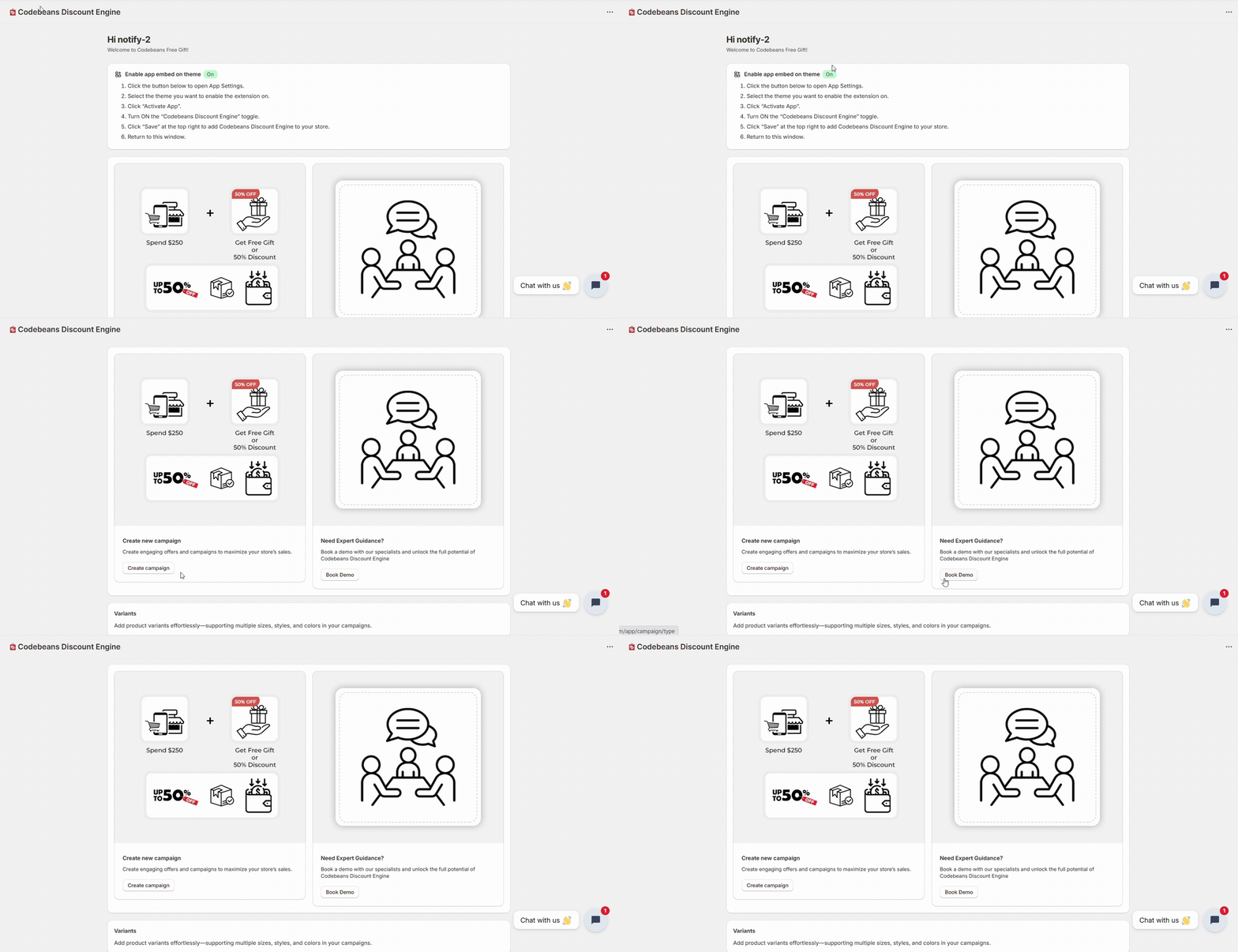
Once opened, you’ll see the main dashboard displaying active campaigns, rule settings, and quick actions.
2. View Campaign Types
Inside the app, review the available discount campaign types:
- Buy X Get Y
- Tiered Pricing
- Free Gift with Purchase
✅ Confirm that all campaign types are visible, selectable, and ready to be configured.
3. Configure a Test Campaign
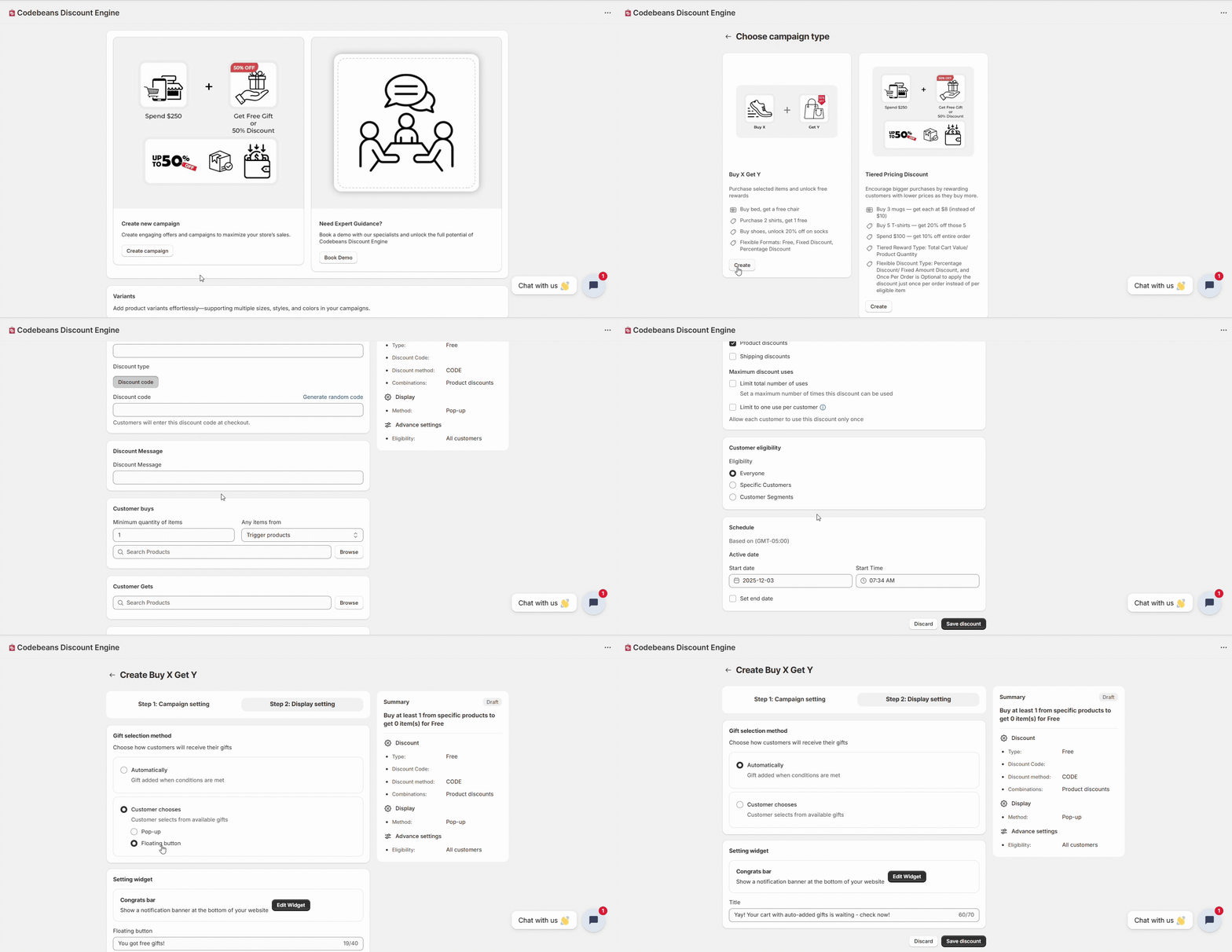
Create a sample campaign to test the app’s functionality:
1. Click Create New Campaign
2. Choose your Campaign Type (e.g., Buy X Get Y)
3. Select Eligible Products or Collections
4. Define Start and End Dates
5. Apply Conditions such as:
- Minimum cart value
- Quantity threshold
- Customer eligibility
Save the campaign once the configuration is complete.
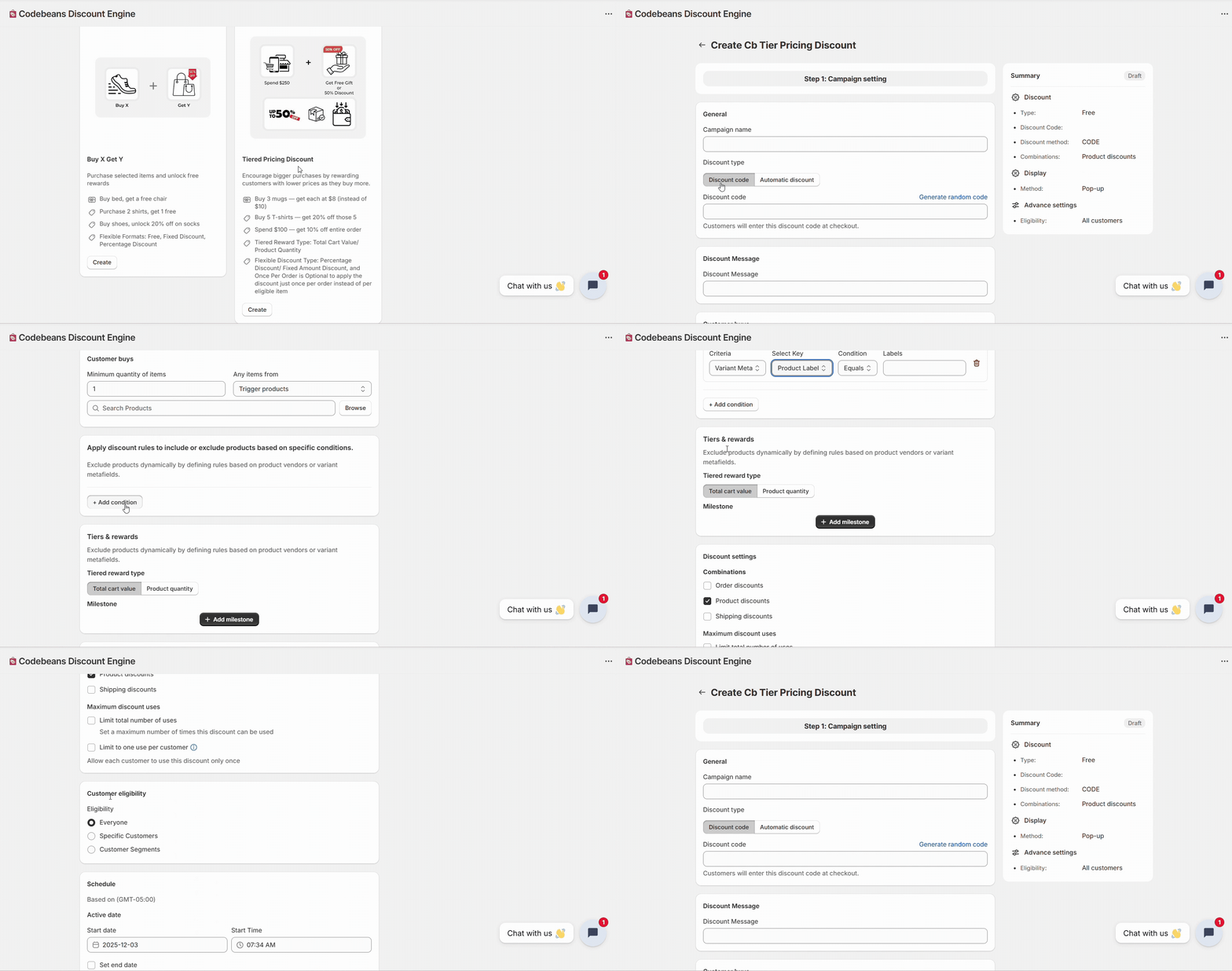
4. Select “Tiered Pricing Discount.”
1. Click on the Tiered Pricing Discount card (the one on the right). This campaign is designed to reward customers with lower prices as they buy more.
You’ll also see examples listed below:
- Buy 3 mugs → get each at $8 (instead of $10)
- Buy 5 T-shirts → get 20% off those 5
- Spend $100 → get 10% off entire order
Click the “Create” button at the bottom of this card.
2. Set Up Your Discount Rules – Once you click Create, you’ll move to the campaign setup screen.Here you can configure all your discount tiers and logic.
a. Add campaign name — e.g., “Bulk Order Discount.”
b. Select reward type — choose how you want to give discounts:
– Percentage Discount (e.g., 10%, 20%)
– Fixed Amount Discount (e.g., $5 off each item)
– Set Price per item (e.g., each at $8)
c.Define tiers — decide when each discount activates:
– Tier 1: Buy 3+ → get 10% off
– Tier 2: Buy 5+ → get 20% off
– Tier 3: Spend $250+ → get 30% off
d. Apply discount to — choose whether it applies per product, collection, or total cart value.
3. Configure Additional Settings: You can also:
- Set eligibility (specific products, collections, or customer segments).
- Exclude items already on sale.
- Set a start and end date for your campaign.
- Limit usage per customer if needed.
5. Go to the Storefront (Front-End)
Open the test storefront:
👉 https://shopy-geo.myshopify.com/
Now, simulate a real purchase:
1. Add eligible products to the cart.
2. Proceed to checkout.
Check whether:
- Discounts apply automatically as per the rules.
- Gifts or tiered pricing appear correctly.
- The cart and checkout values update in real time.
6. Verify Results
After testing, confirm that:
- The correct discount type is applied per campaign setup.
- No unrelated or overlapping discounts appear.
- Scheduling and eligibility rules work as expected.
- Performance metrics (if available) are tracking accurately in the dashboard.
7. Done!
You’ve successfully tested the core functionality of Codebeans Discount Engine.
Your campaigns should now behave exactly as configured — ensuring accurate, automated promotions for your customers every time.